Handover
An implementation ends with documents the client signs and a trail they can rely on. superglue produces both from the work already done, so at handover you export and share them instead of writing them up.
Deliver the documents
Section titled “Deliver the documents”The reports produced during the engagement are artifacts in Brain:
- The requirements and the decision log from discovery
- The fit-gap and the solution design
- The data assessment and readiness report
- The agreed mapping, with decisions and exceptions
- The test results and the UAT sign-off
- The validation and reconciliation results
- The cutover runbook and post-go-live sync overview
Each artifact downloads as PDF or an editable Word document with your organization’s branding. Spreadsheets download as Excel workbooks, and decks as PDF or PowerPoint.
Ask the agent to combine the engagement’s findings into one closing report when the client wants a single document. To see what these documents look like, download the sample deliverables.
Share with the client
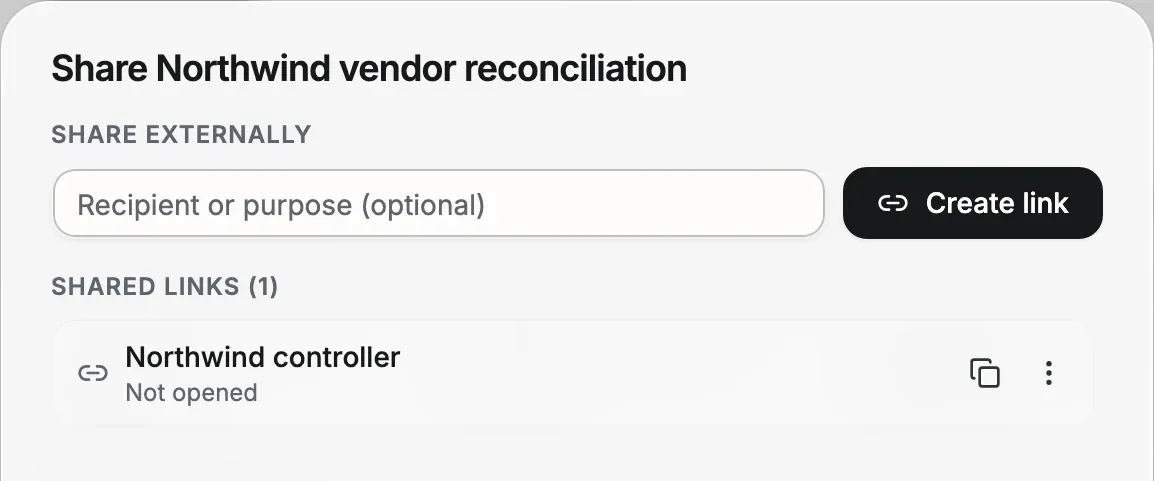
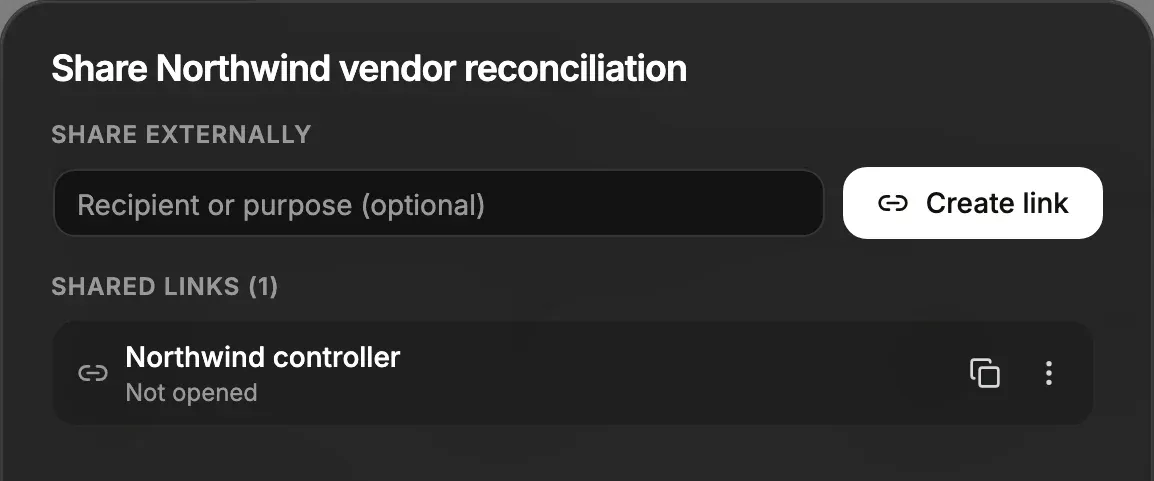
Section titled “Share with the client”- Click Share on the artifact.
- Create a link.
A link always shows the artifact’s current content. If the artifact is a questionnaire or sign-off form, the client fills it in through the link. You receive an email when they submit.
Deliver the audit trail
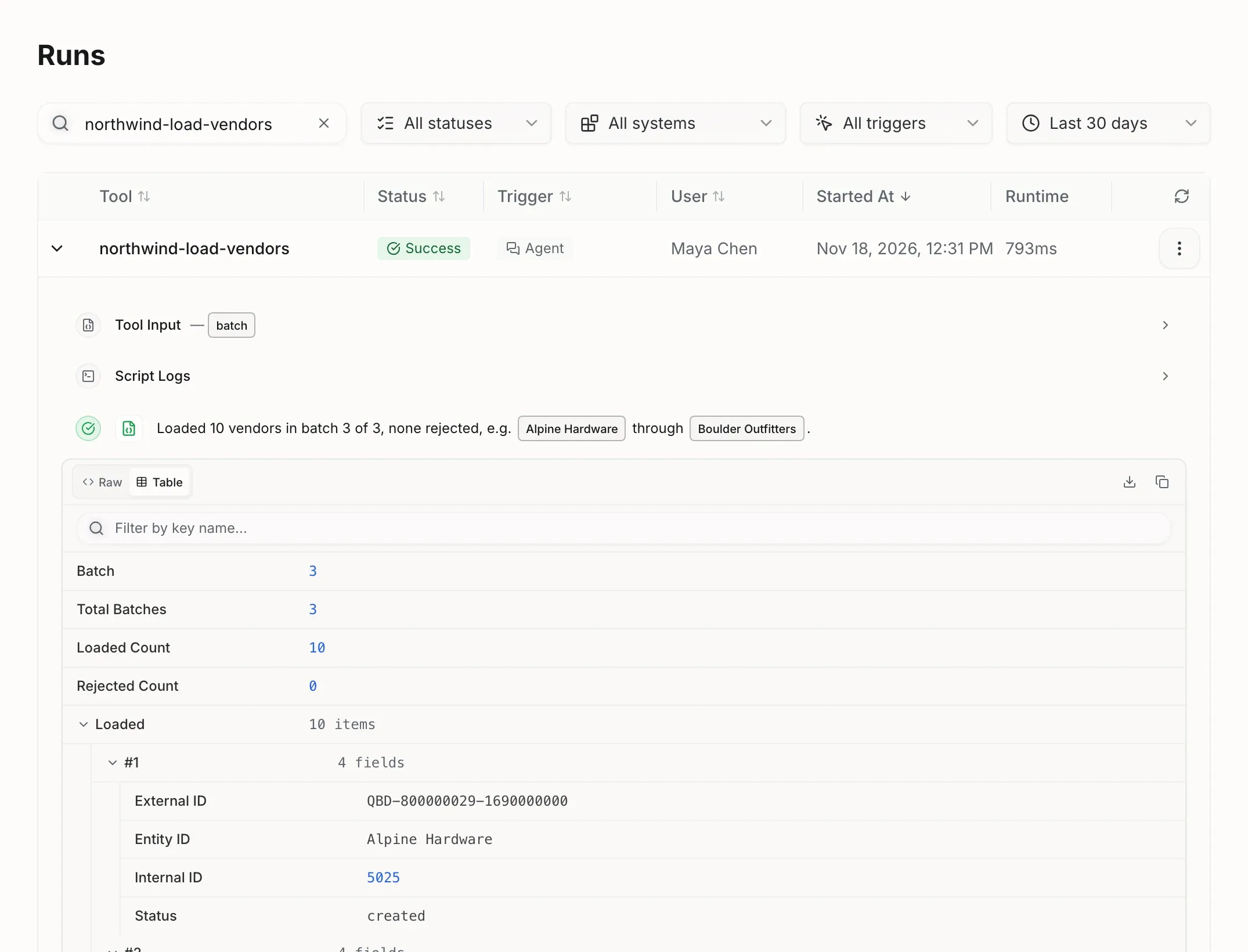
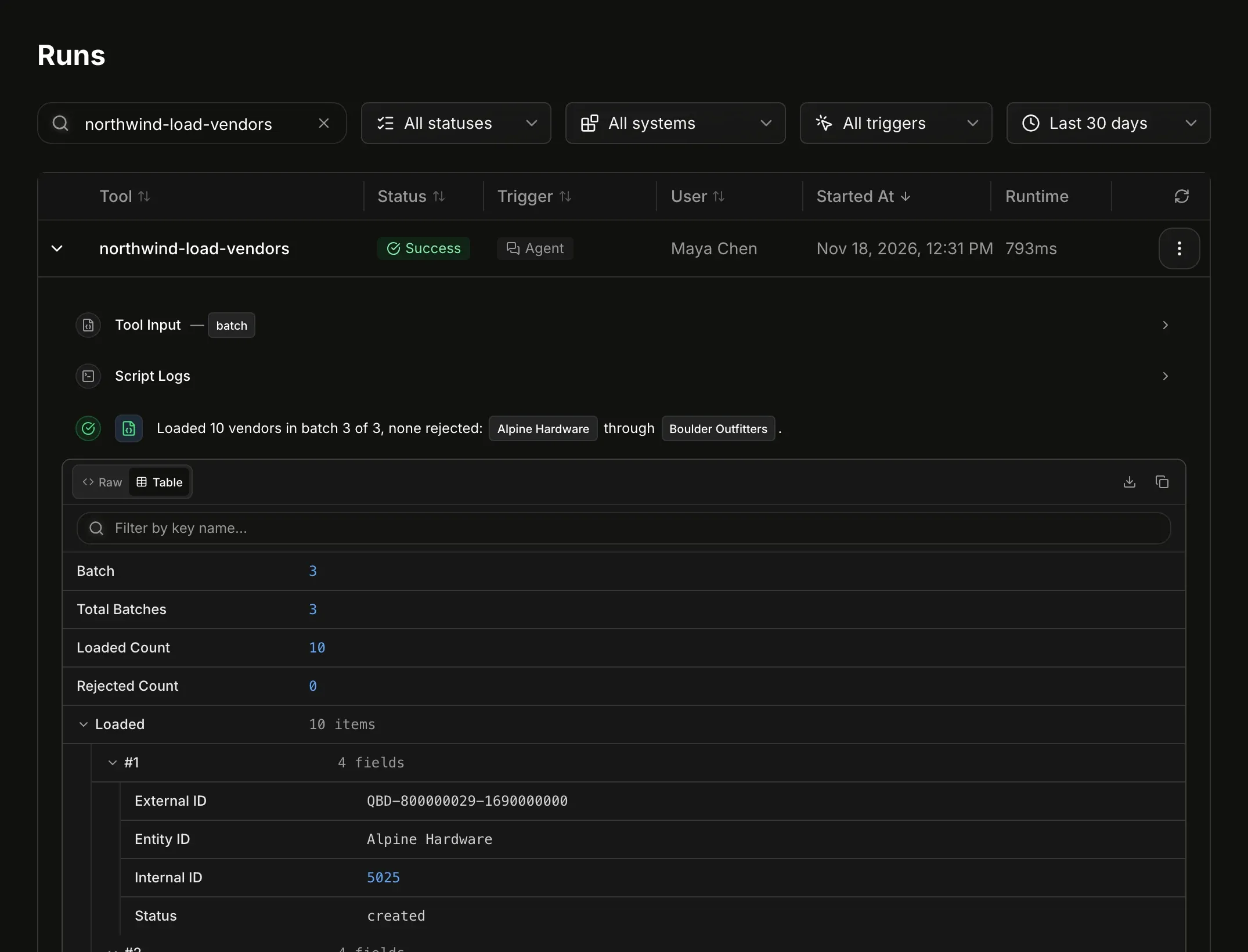
Section titled “Deliver the audit trail”Every run of every tool is recorded with:
- Its status and trigger
- The user or schedule that started it
- The tool and the systems it used
- Its input, shortened when it is large
- The error, when the run failed
Each step’s result and the full output are kept when an admin turns on Store run results.
The Runs page filters by status, system, trigger and time range. The search covers the run ID, tool, user and error.
Prepare the closing pack
Section titled “Prepare the closing pack”For the closing pack, ask the agent to summarize the migration runs into an artifact: what was loaded, when, in how many batches, with which reconciliation result.
Admins turn on Store run results in the Run settings section of Settings to keep each step’s result and the full output. Turn it on before the migration loads, so the trail is complete.
Control who sees what
Section titled “Control who sees what”On the Team and Enterprise plans, your organization can include the client’s own staff. On the Enterprise plan, use access rules to give them exactly what they need:
- Viewer access to the sync tools lets the client’s finance team run them and see results, without changing them.
- Each tool runs with the client’s own connection or one you share deliberately, such as a service account connection.
- A custom role per client keeps engagements separated when several clients share one organization. For full separation, Enterprise organizations can create a sub-organization per client.
See Role-based access control.
Leave the client self-sufficient
Section titled “Leave the client self-sufficient”If the client will operate the syncs themselves, hand over three things:
- Notifications routed to their channel, so failures reach them first.
- The Investigate flow on the Runs page, so their team can ask the agent to explain and repair a failure.
- The playbook or written instructions for the recurring tasks, such as month-end reconciliation, saved as a playbook or as a file in the project.
For clients who want AI assistants in their own tools, an MCP server can expose selected superglue tools to Claude, Copilot-style clients or Langdock with the client’s own logins. See Creating an MCP server.
Close the project
Section titled “Close the project”- Archive the project when the engagement ends. Sessions and tasks are hidden, and access that people had only through the project ends.
- Disable schedules that are no longer needed. Do not delete them, so the history stays complete.
Can the client sign off in superglue?
Section titled “Can the client sign off in superglue?”Yes. Ask the agent for a sign-off form. It builds a form with the reconciliation summary and an acceptance section. The client’s confirmation lands in the project with a timestamp.
Are connections shared with the client automatically?
Section titled “Are connections shared with the client automatically?”No. Connections are never shared automatically. A recipient of a shared tool uses their own connection or one you share deliberately.